
Partial Manager makes it easier to manage partial profit closing across multiple open orders. Instead of manually closing half of each position one by one, you can use a single price line to manage applicable trades while the market continues moving.
One Line Manages Multiple Partial Closes
Click “PL” and the EA draws a single partial-close line on the chart. Move it to the price level where you want the action to occur. When market price touches that level, half the volume of the applicable open orders in that direction can be closed automatically. After the process is completed, the line disappears.
Two Ways to Manage Partial Closing
Precision Trade Manager gives traders two flexible ways to manage partial exits. You can create an individual line for each order when precise order-by-order control is required, or use the group management function when several positions need to be handled around the same price level.
1. Individual Partial Line for Each Order
If you want a separate Partial Line or PP Line for each individual order, first click the “TS” button to open the Trade Settings panel.
Inside Trade Settings, use the Partial setting to activate the individual partial-close function. You can configure the desired distance between the order and its Partial Line. Once enabled, the EA can create a dedicated line for the relevant position according to the distance you selected.
This approach gives you precise control because every order can have its own partial-close level. You can also position the line manually when you want to choose an exact price instead of using the configured distance.
2. Partial Manager for Multiple Orders
When several open positions need to be handled together, click “PL” to activate the Partial Manager. A single draggable line appears on the chart.
Move the line to your desired price. When price touches it, the EA can close half of the volume of the applicable open orders in that direction. This provides a convenient alternative to creating or adjusting a separate line for every position.
What If You Forgot to Set an Individual PP Line?
You do not have to configure an individual PP Line for every trade. If you forgot to create one for some positions, the group function can still be used to manage them.
Simply activate the feature with “PL”, place the line at your desired price level, and wait for the market to touch it. At that point, half the volume of the applicable open orders can be closed automatically.
This gives you two different approaches: use individual lines when you need order-by-order control, or use one common line when you want a group partial close.
What Does This Tool Do?
- Draws a single draggable line for managing multiple open orders
- Closes half the volume of applicable positions when price reaches the selected level
- Allows multiple trades to be managed without creating a separate line for every order
- Can be used even when an individual PP Line was not previously configured
- Provides a faster alternative to manually partially closing positions one by one
- Can handle a large number of open orders
- The line disappears automatically after the applicable process is completed
- Individual lines remain available through Trade Settings when order-specific control is required
How to Set an Individual Partial Line
- Open your trades in MetaTrader 4 or MetaTrader 5.
- Click “TS” to open the Trade Settings panel.
- Find the Partial setting.
- Enable the individual partial-close function.
- Set the desired distance from the order.
- The EA can create an individual line according to the configured distance.
- If preferred, position the line manually to select an exact price level.
How to Use the Partial Manager
- Open your trades on the official MetaTrader platform.
- Click “PL” on the EA.
- A partial management line appears on the chart.
- Drag it to the price level where you want the action to trigger.
- When price touches the line, half the volume of the applicable open orders in that direction is closed.
- The line disappears automatically after the process is completed.
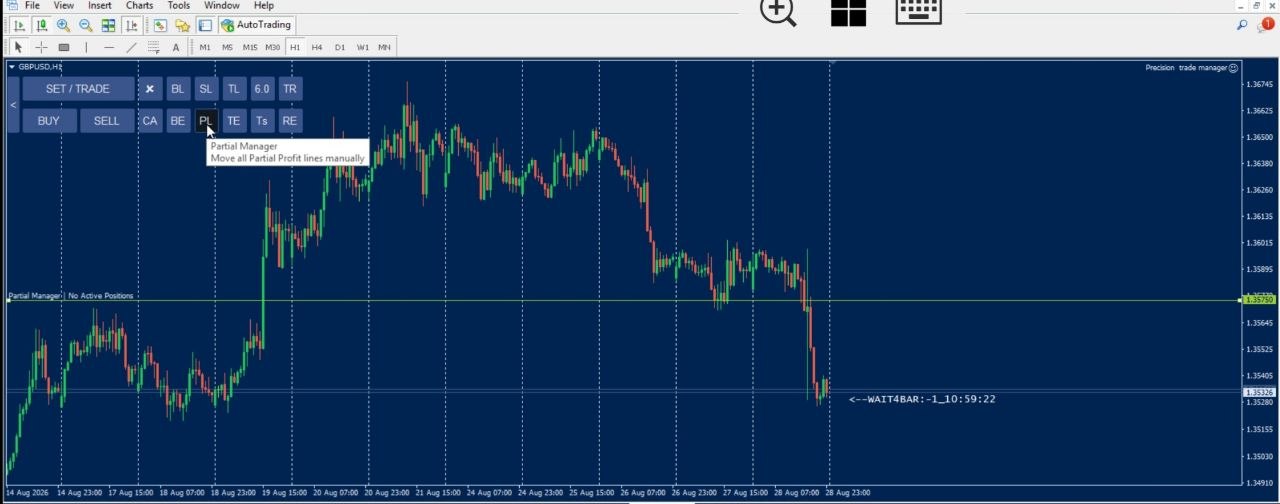
Partial Manager in Action
The image below shows how the feature can be used to manage partial closing across multiple open positions with a single price level.
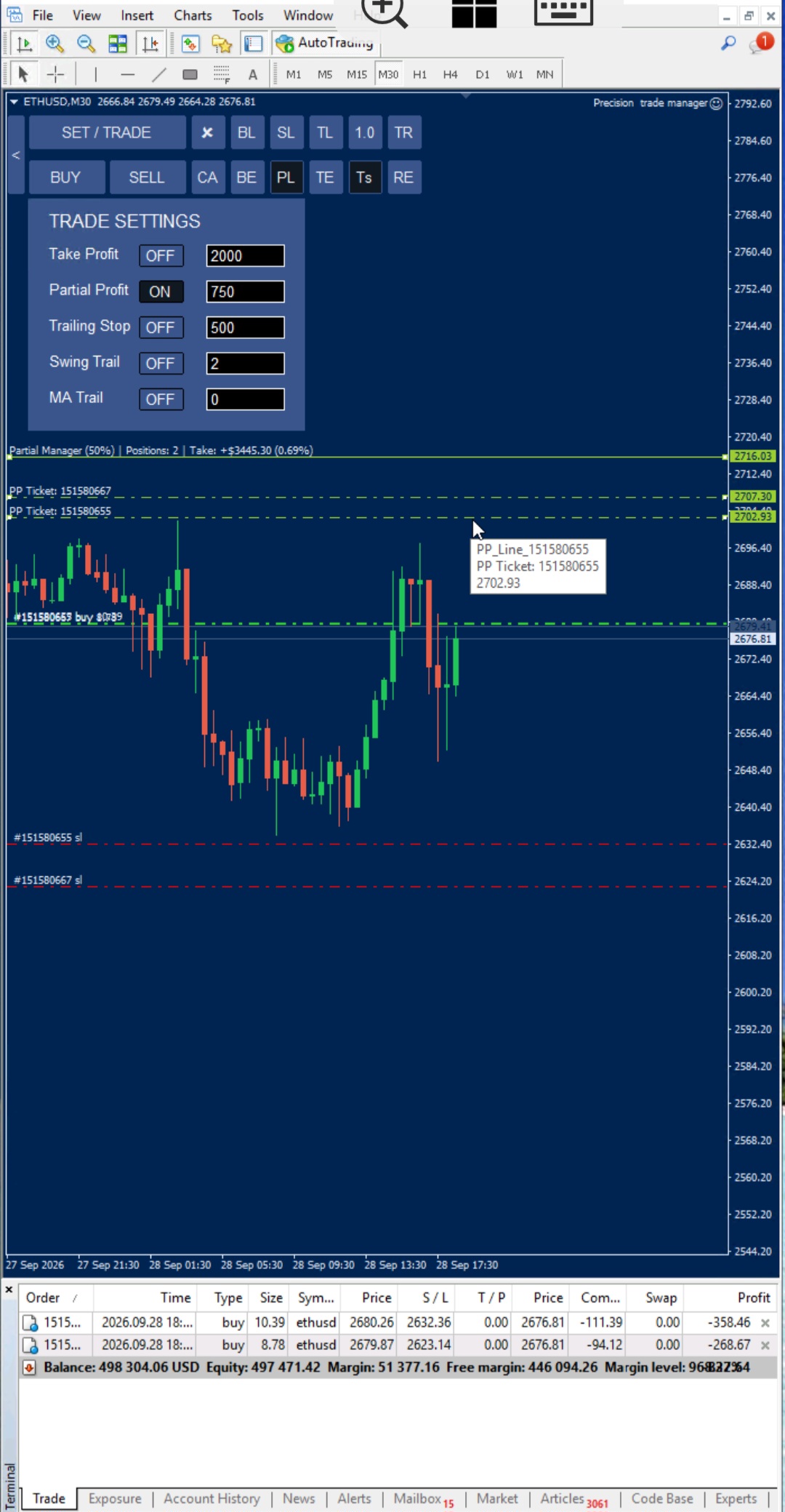
Watch the video below to see how a single draggable line can simplify partial profit management across multiple open trades.
Individual Partial Lines vs. Partial Manager
| Individual Partial Line | Partial Manager |
|---|---|
| Separate line for each individual order | One line can manage multiple applicable orders |
| Configured through TS → Trade Settings → Partial | Activated directly using the PL button |
| Set a specific distance from each order | Drag one line to the desired market price |
| Can also be positioned manually | Designed for fast group partial closing |
| Ideal when each position needs its own exit level | Ideal when several positions should be partially closed around the same level |
Frequently Asked Questions
How do I create a Partial Line for an individual order?
Click the “TS” button to open Trade Settings, then enable the Partial setting. You can configure the desired distance from the order, or position the line manually at your preferred price.
Do I need to set a Partial Line for every order?
No. Individual lines are useful when you want order-by-order control. If you have many positions and want to manage them together, you can use the Partial Manager instead.
What happens if I forgot to configure individual PP Lines?
You can still activate the group function using the PL button. Place the line at your desired price and, when price touches it, the applicable positions can have half their volume closed.
How much of each order is closed?
The system is designed to close half of the volume of the applicable open orders when the selected line is triggered.
Can I use individual Partial Lines and Partial Manager together?
Yes. Individual lines provide order-specific control, while the group function provides a convenient way to manage multiple applicable positions with one line.
Does it affect both buy and sell orders?
The operation applies according to the selected direction. Positions in the opposite direction are left untouched.
Can I use it alongside SL Manager and TP Manager?
Yes. The Partial Manager, SL Manager, and TP Manager are designed as independent trade-management tools and can be used together.
What happens to the line after the partial close?
The line is removed automatically once the applicable partial-close process has been completed.
Does it work with MetaTrader 4 and MetaTrader 5?
Yes. Precision Trade Manager is designed for both MetaTrader 4 and MetaTrader 5.
Manage Individual Orders or Multiple Positions With One Line
The Partial Manager gives you flexibility when managing partial profits. When precise control is required, use TS → Trade Settings → Partial to configure an individual line for each order, set its distance, or position it manually.
When several positions need to be managed quickly, use the PL button to activate the group function and place one line at your desired price level. When price touches that level, the applicable orders can have half their volume closed automatically.
Even if you forgot to configure individual PP Lines, you still have a fast way to manage partial closing without manually modifying every position.
[CTA Button: Download / Buy Now / View Pricing]
Related Tools
Pair this feature with the SL Manager to control stop-loss levels, or use the TP Manager to manage take-profit levels — giving you a complete one-line, one-click trade management workflow.