
Best Trade Manager MT5 MT4 – Complete User Manual & Setup Guide
Complete documentation for Trade Manager MT5 MT4: installation, risk management, order execution, trade protection, profit management, chart tools and the Ultimate indicator suite for MetaTrader 4 and MetaTrader 5.

Welcome to the official documentation for Trade Manager MT5 MT4. This manual explains how to install, configure and use Precision Trade Manager on MetaTrader 4 and MetaTrader 5. You can download our free unrestricted demo version (DEMO.zip) directly—no email or form filling required, with full testing enabled across all symbols. You can also explore our official software licenses and pricing plans to choose the right edition for your live accounts. The panel combines visual chart lines, risk-based position sizing, stop-loss and take-profit control, partial profits, breakeven, three trailing modes and emergency buttons in one workspace.
Every section tells you what the tool does, the exact steps to use it, and the settings to check before you use it on a live account.
Trade Manager MT5 MT4 User Manual Contents
- 1. Installation & WebRequest
- 1.1. Free Demo Download
- 2. MT4 vs MT5
- 3. Before You Start
- 4. Risk Manager EA
- 5. Split Order EA
- 6. Pending Order EA
- 7. SL Manager
- 8. TP Manager
- 9. Partial Manager
- 10. Breakeven
- 11. Break Even From Behind – TB
- 12. Trailing Stop
- 13. Loss Breakeven
- 14. BETE Trendline
- 15. Dark Cloud Cover
- 16. Equity Protection
- 17. Daily Loss Limit
- 18. Emergency Controls
- 19. Latest 6+1 Features
- 20. Ultimate Indicator Suite
- 21. Self-Template
- 22. License Management
- 23. FAQ & Troubleshooting
- 24. Official Resources
- 25. Risk Disclaimer
Trade Manager MT5 MT4 Installation & WebRequest Guide Setup
Installation takes a few minutes. Both versions use the standard Experts folder of your MetaTrader data directory.
Step 1: File Preparation
- Download the compiled EA file from your account dashboard or grab the free demo package directly below.
- Use the
.ex4file for MT4 and the.ex5file for MT5. - Extract the files if they come in a ZIP package.
Step 2: Terminal Directory Placement
- Open MetaTrader and select File > Open Data Folder.
- Open
MQL4/Expertsfor MT4 orMQL5/Expertsfor MT5. - Copy the EA file into that folder.
- Restart MetaTrader or refresh the Navigator panel.
Step 3: WebRequest & Permissions
WebRequest is used only to verify your license with the Precision Trade Manager server. It does not place trades. The address must be on MetaTrader’s allowed URL list.
- Enable Allow Live Trading in the EA Common tab.
- Open Tools > Options > Expert Advisors.
- Enable Allow WebRequest for listed URL.
- Add this domain:
https://precisiontrademanager.com
Trade Manager MT5 MT4 Free Demo Download Free Demo
Test all features instantly on your demo account without any registration barriers, email requirements, or symbol limitations.
Direct Demo Access
- No Forms or Emails: Click and download instantly.
- No Symbol Restrictions: Fully functional across all symbols and currency pairs on demo accounts so you can test freely.
- Direct Download Link: Download DEMO.zip
Trade Manager MT5 MT4 Compatibility Guide Compatibility
One license covers both platforms. The MT4 and MT5 builds are separate compiled files with the same workflow wherever the platform allows.
Platform Guidelines
- MT4: install the
.ex4file inMQL4/Experts. - MT5: install the
.ex5file inMQL5/Experts. - MT4 and MT5 handle orders differently, so execution behavior can differ slightly.
- Check your broker’s symbol settings: minimum lot, volume step and stop levels.
Trade Manager MT5 MT4 Checklist Best Practices
Go through this list before using the tools on a live account.
Verification Steps
- The correct MT4 or MT5 file is installed.
- The EA is attached to the chart and symbol you want to trade.
- Global AutoTrading is on and Allow Live Trading is ticked.
- WebRequest is allowed for the Precision Trade Manager domain.
- Risk %, stop-loss, take-profit and position-size inputs match your plan.
- Broker minimum and maximum volume are checked.
- The whole workflow has been tested using our free demo download on a demo account.
Trade Manager MT5 MT4 Risk Manager EA Two-Click Entry
The Risk Manager calculates the lot size from your risk percentage and stop-loss distance, so you never calculate it by hand.
How It Works
- Click Buy or Sell once. One stop-loss line appears on the chart.
- Drag the line to your stop-loss price.
- Click the same button again.
- The EA calculates the lot size from the risk % and the stop-loss distance, then sends the order.
How to configure the risk percentage.
| Input Parameter | Description |
|---|---|
| InpRisk Percent | Percentage of equity or balance risked per trade (Default: 6.0). This is an example value; set your own risk before trading live. |
| InpStopLossDistancePips | Default stop-loss distance used in calculations (Default: 500). |
| InpExtraPips | Extra buffer added to the calculation (Default: 1.0). |
| MagicNumber | Identifier assigned to EA orders (Default: 66666). |
| Slippage | Maximum allowed slippage in points (Default: 1000). |
Trade Manager MT5 MT4 Split Order EA Automatic Slicing
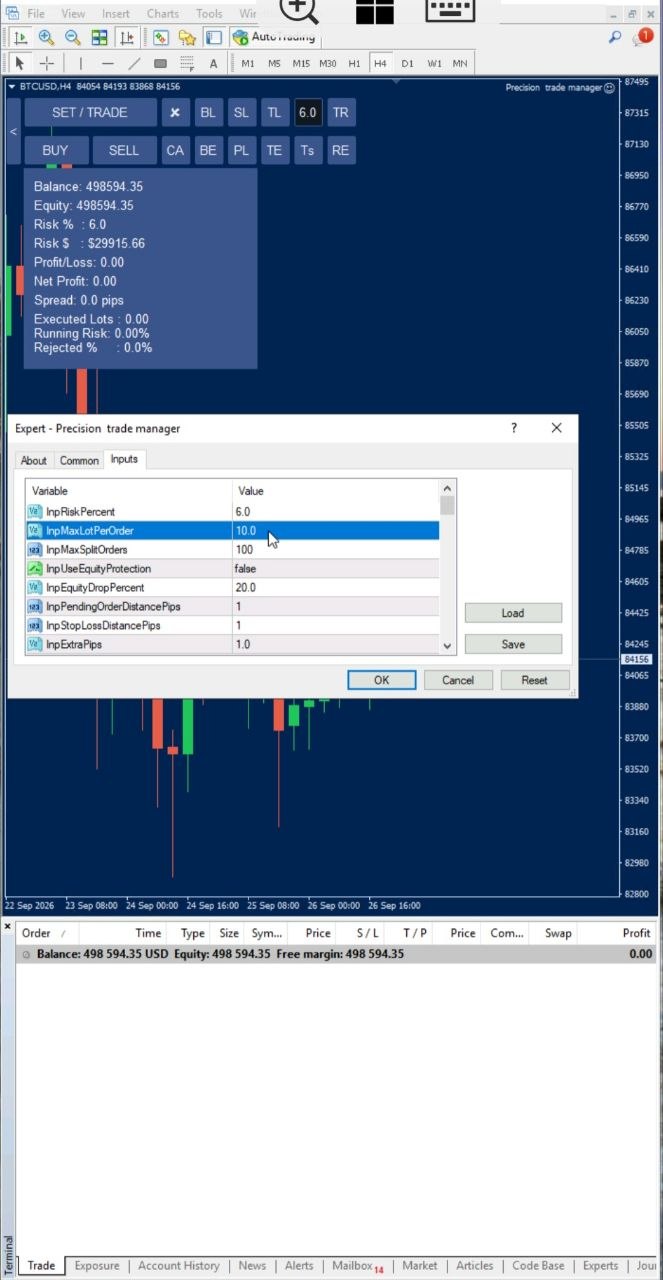
When the calculated position is larger than your broker allows in a single order, Split Order divides it into several smaller orders. You still configure one entry and one stop-loss, while the EA distributes the total volume across multiple orders when needed.
How It Works
- Set the entry and stop-loss with the normal Risk Manager workflow.
- The EA calculates the full position size from your risk %.
- If that size exceeds the per-order limit, it is split into several orders.
- All split orders are sent with the same stop-loss.
| Input Parameter | Description |
|---|---|
| InpMaxLotPerOrder | Maximum volume of one split order (Default: 500.0). |
| InpMaxSplitOrders | Maximum number of split orders (Default: 100). |
Trade Manager MT5 MT4 Pending Order EA Visual Staging
Prepare entry, stop-loss, take-profit and partial-profit lines on the chart, then send the pending order with all levels applied. The EA detects whether it is a Buy Stop, Sell Stop, Buy Limit or Sell Limit from where you place the line.
How It Works
- Click Set/Trade once. The order line and stop-loss line appear. If the Take Profit and Partial Profit buttons are already on in the settings panel, their lines appear too.
- Drag each line to the price you want.
- Click Set/Trade again to place the order.
| Input Parameter | Description |
|---|---|
| InpPendingOrderDistancePips | Initial distance from market price when the lines are created (Default: 100). |
Trade Manager MT5 MT4 SL Manager One-Line Control
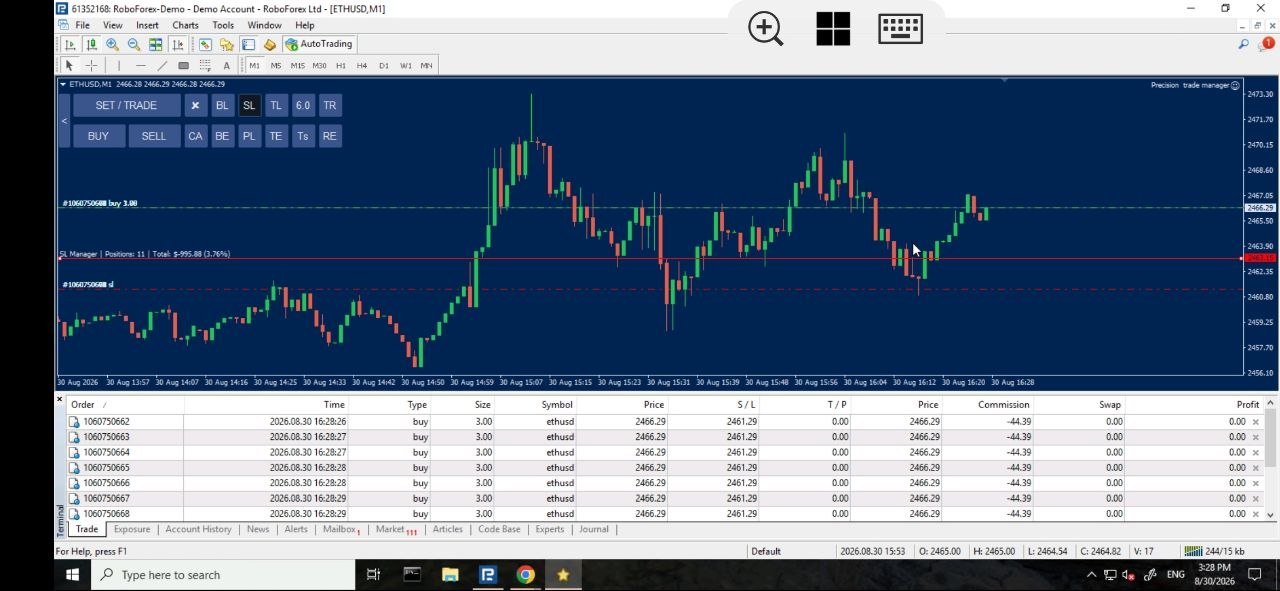
Move the stop-loss of every open position in one direction with a single draggable line. Use it when you want all orders protected at the same level.
How It Works
- Click SL. One draggable line appears and shows your total money at risk as you move it.
- Drag the line to the stop-loss level you want.
- Click SL again. Every open order in the line’s direction gets its stop-loss moved there, with no limit on the number of orders.
- The line disappears when the transfer is complete.
| Input Parameter | Description |
|---|---|
| InpBreakEvenLineOffsetPips | Offset in pips used when management lines are created (Default: 1500.0). |
Trade Manager MT5 MT4 TP Manager One-Line Control
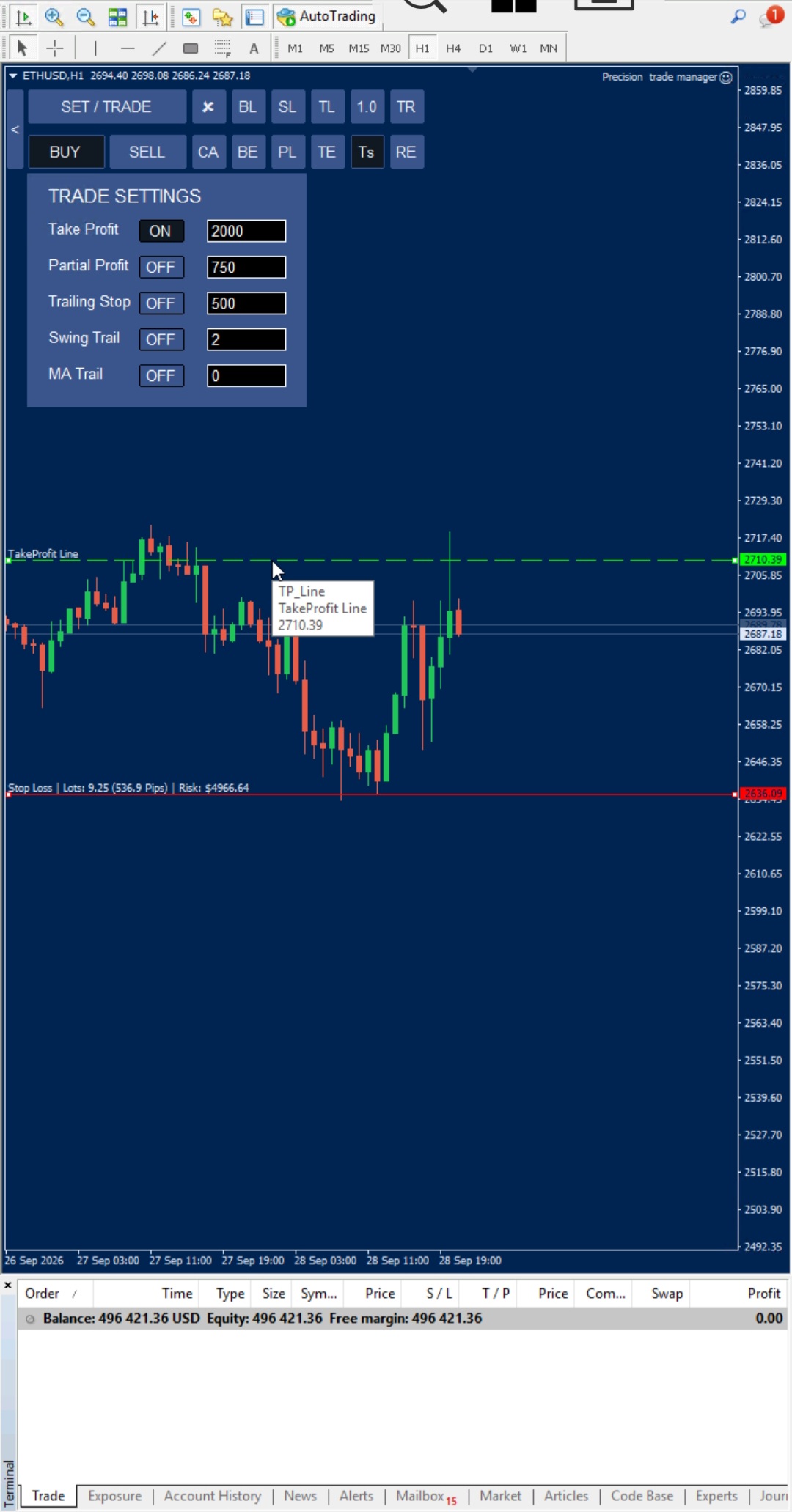
TP Manager works like SL Manager, but for take-profit targets.
How It Works
- Click TP. A draggable line appears and shows the potential profit as you move it.
- Drag the line to your target price.
- Click TP again. Every open order in that direction gets the new take-profit.
- The line disappears after completion.
| Input Parameter | Description |
|---|---|
| InpTakeProfitPips | Default take-profit distance (Default: 2000). |
| InpTPManagerLineDistancePips | Initial distance of the TP line (Default: 600). |
| Use Take Profit Line | Turns the interactive take-profit line on or off (Default: false). |
Trade Manager MT5 MT4 Partial Manager Partial Profit
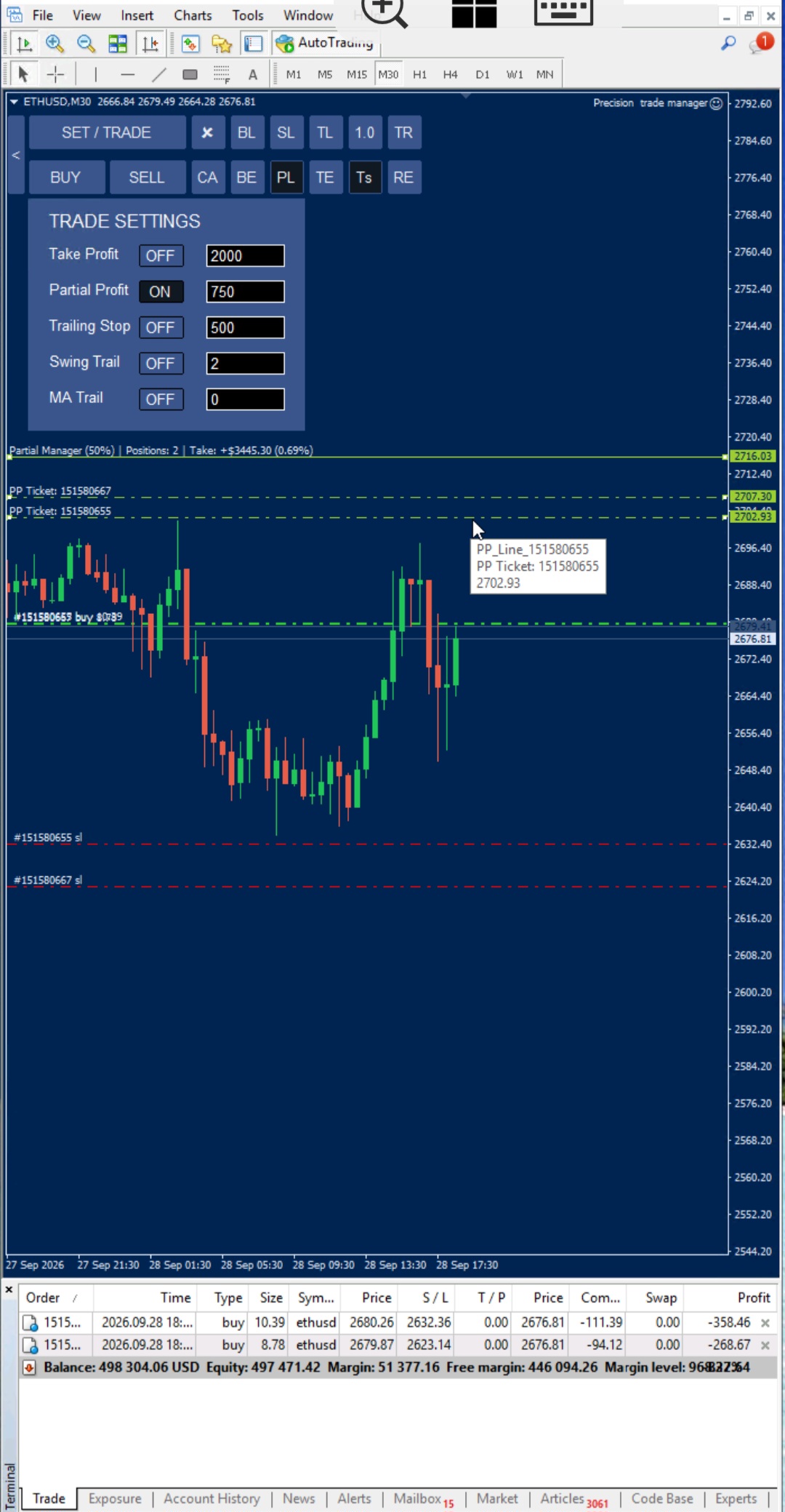
Bank part of your profit automatically when price reaches a line you choose.
How It Works
- Click PL. One draggable partial-profit line appears.
- Drag it to the price where you want to take partial profit.
- When price touches the line, half of the volume of every open order in that direction is closed. There is no limit on the number of orders.
- The line is removed after the process finishes.
| Input Parameter | Description |
|---|---|
| InpPartialProfitPips | Default partial-profit distance (Default: 750). |
| InpPartialManagerDistancePips | Initial distance of the partial-profit line (Default: 500). |
| Use Partial Profit Line | Turns the interactive partial-profit line on or off (Default: false). |
Trade Manager MT5 MT4 Breakeven EA Module Risk Protection
Move your stop-loss to the true breakeven price, including commission and swap, so a trade can no longer turn into a loss.
Two Modes
- BL (line): click BL to draw a trigger line. When price touches it, each order’s stop-loss moves to its own breakeven price.
- BE (instant): click BE to move all active orders to breakeven at once, for example during news.
- Fee-aware: commission and swap of each order are included individually. An adjustable buffer multiplier in the inputs adds extra fee coverage.
| Input Parameter | Description |
|---|---|
| BE_OnlyOnce | Runs the breakeven move only once per position when enabled (Default: false). |
Trade Manager MT5 MT4 Break Even From Behind – TB TB Protection
Break Even From Behind is an advanced TB trade-management feature for MetaTrader 4 and MetaTrader 5. It places a horizontal Yellow-Green dotted line behind the current price and manages the position when price reverses back toward that line.
How to Activate Break Even From Behind
- Open the TE panel on the chart.
- The TE panel contains three buttons.
- Click TB to create the Break Even From Behind line.
- A horizontal Yellow-Green dotted line appears on the chart.
- Drag the TB line to the price level where you want the reversal to trigger the trade-management action.
Buy Position – TB Below Price
For a Buy position, the TB line is placed below the current price.
- Price moves above the TB line.
- The TB line remains behind the current price.
- Price reverses downward.
- When price touches the TB line from above, the TB trigger is activated.
- The action depends on whether the position is currently in profit or loss.
Buy → TB below price → downward reversal → TB touch → position management
Sell Position – TB Above Price
For a Sell position, the TB line is placed above the current price.
- Price moves below the TB line.
- The TB line remains behind the current price.
- Price reverses upward.
- When price touches the TB line from below, the TB trigger is activated.
- The action depends on whether the position is currently in profit or loss.
Sell → TB above price → upward reversal → TB touch → position management
When the Position Is in Profit
If the position is in profit when price reaches the TB line, TB performs Break-Even protection.
- The position is moved to its true Break-Even level.
- Commission and Swap are included in the Break-Even calculation.
- The objective is to protect the profitable position while accounting for the actual trading costs.
Profit → Break-Even with Commission and Swap
When the Position Is in Loss
If the position is still in loss when price reaches the TB line, TB performs Loss Break-Even.
- The Take Profit is placed exactly at the original entry price.
- Commission and Swap are not added to the entry price.
- If price returns to the original entry, the position can exit and escape the loss.
Loss → TP exactly at Entry Price
| TB Mode | Position Status | Result | Commission & Swap |
|---|---|---|---|
| TB Break-Even | Position is in profit | Break-Even level | Included |
| TB Loss Break-Even | Position is in loss | TP exactly at original entry | Not included |
TB Loss Break-Even when the position is in loss.
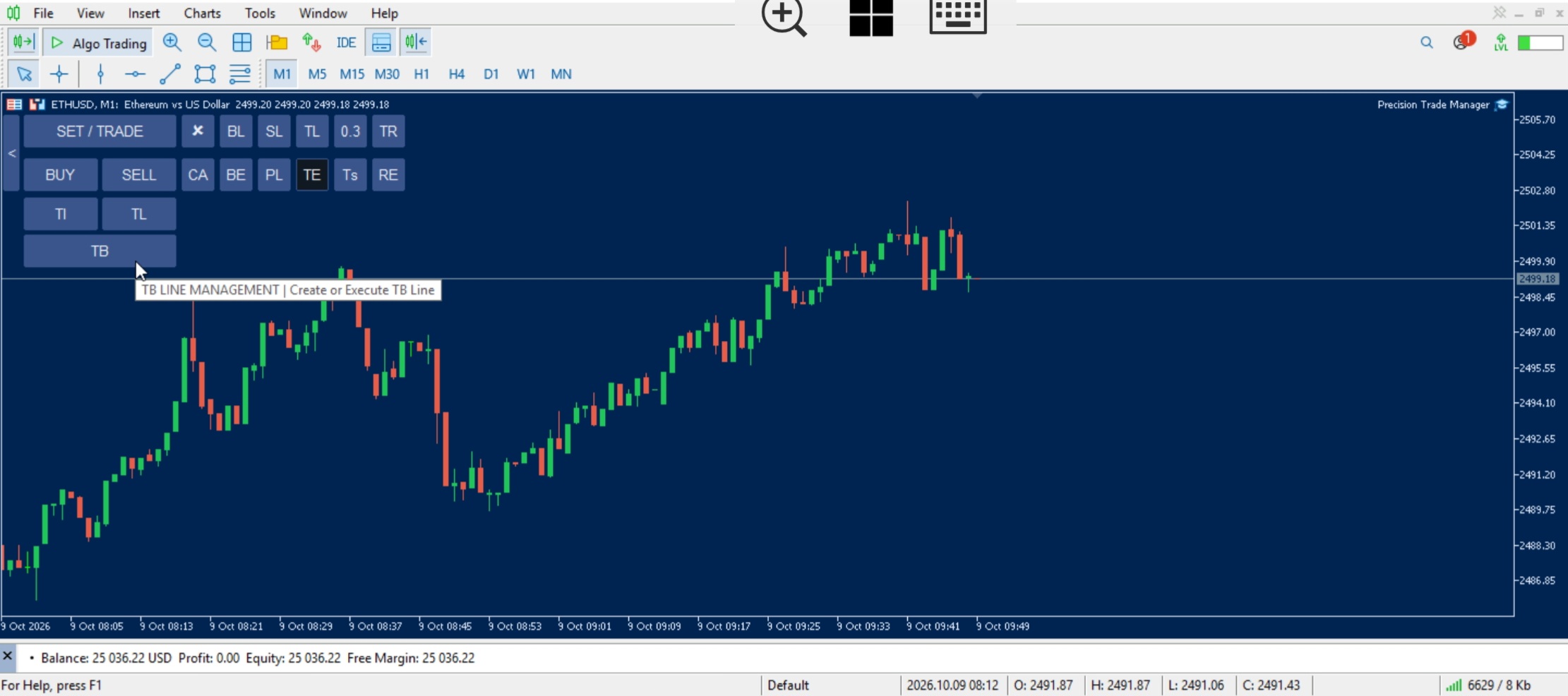
Break Even From Behind – TB line on the chart.
TB Break-Even when the position is in profit.
Trade Manager MT5 MT4 Trailing Stop Flexible Trailing
Three ways to trail your stop-loss: fixed pips, market-structure swings, or a moving average. The TS panel button opens the trade settings, and the TR button on the chart turns the orange trail line on or off for the mode you toggled on.
Mode 1 — Pip-Based Trailing
- Type the pip distance in the panel field and toggle the mode on.
- Click TR to draw the orange trail line.
- Trailing starts when price touches the line. Toggle TR off to stop it.
Mode 2 — Swing Trail
- Choose which swing from price to follow (1st, 2nd, Nth) and set the timeframe in the inputs.
- Toggle Swing Trail on in the panel and click TR for the orange line.
- When price touches the line, the stop follows the chosen swing high or low instead of a fixed pip distance.
Mode 3 — Moving Average Trail
- Set the timeframe, period, MA method and candle-close type in the inputs, and place the moving average on the chart with the same settings.
- In the panel field, enter which candle’s time-intersection with the MA line sets the stop-loss position.
- Click TR. Trailing starts when price touches the line.
| Trailing Mode | Main Basis | Typical Use |
|---|---|---|
| Pip-Based | Fixed pip distance | Simple, predictable distance |
| Swing | Market structure | Price-action trailing |
| MA | Moving Average | Trend-following trailing |
| Input Parameter | Description |
|---|---|
| InpTrailingStopPips | Pip-mode trail distance (Default: 500). |
| InpTrailLineDistancePips | Initial distance of the trail line (Default: 1000). |
| Trailing Stop Calculation Timeframe | Timeframe for Swing and MA trailing (Default: 1 Hour). |
| MA Trailing Period | Period of the moving average (Default: 24). |
| MA Method | SMA, EMA and other methods (Default: Simple). |
| MA Applied Price | Price used by the MA (Default: Close). |
Trade Manager MT5 MT4 Loss Breakeven Loss Management
For positions that are losing, Loss Breakeven moves the take-profit to the exact price where the trade closes at zero cost. If price comes back to that level, you exit without a loss.
TE – Instant
- When your positions are in loss, click TE.
- The take-profit of every open position moves to its own breakeven point. Commission and swap are calculated per order, not as one averaged level.
TE Line – Custom Target
- Create the custom TE Line on the chart.
- Drag it to the exit price you prefer.
- When the BETE workflow triggers, the take-profit goes to your TE Line instead of the calculated breakeven price.
Trade Manager MT5 MT4 BETE Trendline Trend Break Automation
BETE monitors a trendline that you draw and automatically protects your trades only after a candle on the selected timeframe has closed on or beyond the BETE trendline in the opposite direction of the trade.
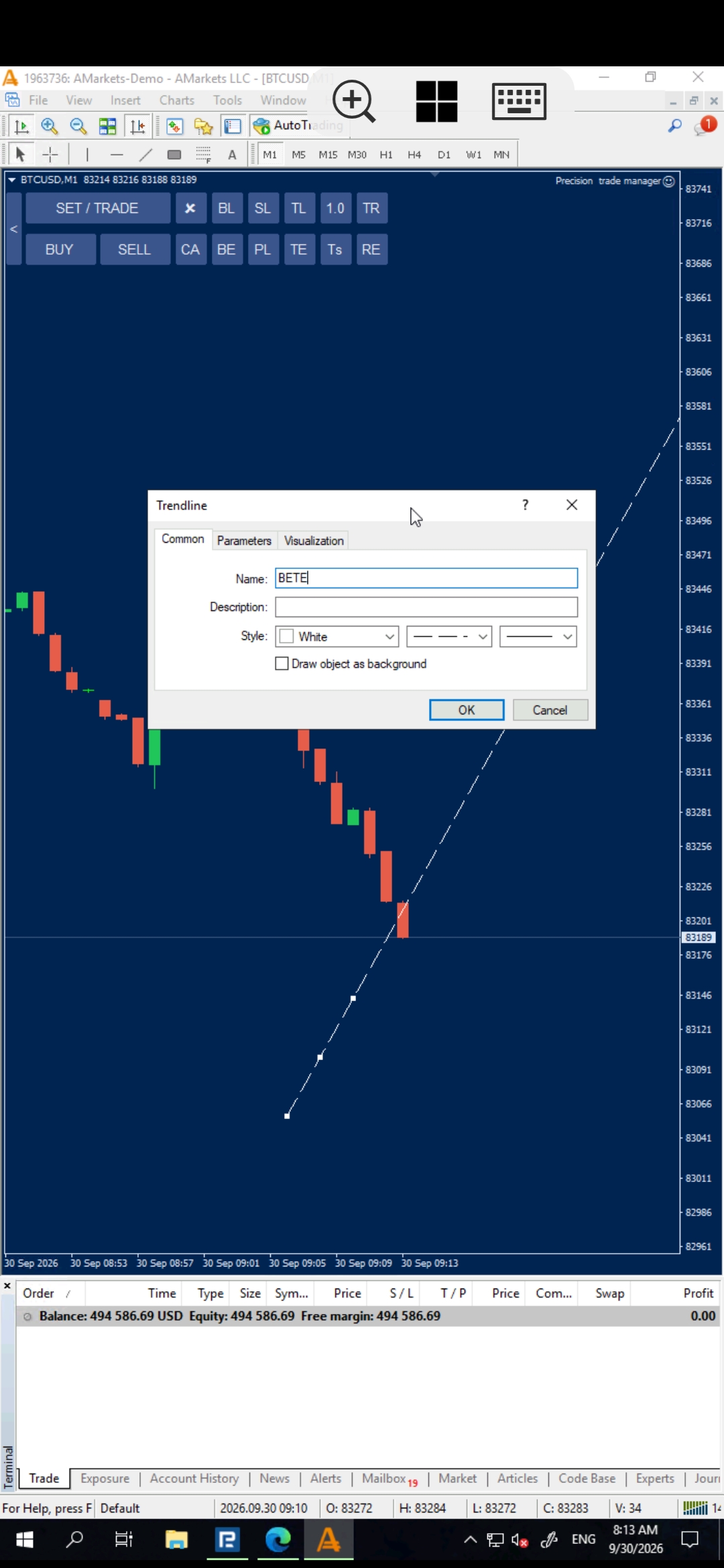
BETE Trendline demonstration.
How It Works
- Draw a trendline on the chart and rename the object to exactly BETE.
- Select the monitoring timeframe in the EA inputs.
- BETE checks the newly closed candle on the selected timeframe. The trigger occurs only when that candle’s close is on or beyond the BETE trendline in the opposite direction of the trade. Equality with the trendline counts as a trigger.
- The EA does not trigger from price movement while the candle is still forming. The candle must close first.
- Closed candles from before the BETE trendline was created are ignored. BETE begins monitoring the appropriate candle after the line creation time.
- When the BETE condition is confirmed, profitable positions move to breakeven, losing positions receive Loss Break-Even (take-profit at the zero-cost exit point), and pending orders are deleted at the same moment.
| Input Parameter | Description |
|---|---|
| BETE Line Trigger Timeframe | Timeframe on which newly closed candles are checked for the BETE trigger (Default: 30 Minutes). |
Trade Manager MT5 MT4 Dark Cloud Cover EA Pattern Detection
Dark Cloud Cover watches for Dark Cloud (bearish, at swing highs) and Gap Up (bullish, at swing lows) reversal patterns and protects your trades at the open of the new candle.
How It Works
- Place a chart text object containing exactly the single uppercase letter D. Any other text is ignored. Deleting the object turns the module off.
- Choose the timeframe and minimum gap in the inputs.
- When the pattern is confirmed, the EA acts instantly at the Open of the new candle. It does not wait for the candle to close.
- It deletes pending orders in the opposite direction (same-direction pending orders stay), moves the stop-loss to breakeven on profitable positions, and moves the take-profit to breakeven on losing positions.
- You get a MetaTrader pop-up alert and a mobile push notification.
| Input Parameter | Description |
|---|---|
| InpDarkCloud_Timeframe | Timeframe scanned for the pattern (Default: 1 Hour). |
| InpDarkCloud_Distance | Minimum gap in pips between the new candle’s Open and the previous Close (Default: 1.0). |
Trade Manager MT5 MT4 Equity Protection EA Account Safeguard
A normal stop-loss can be skipped when the market opens with a weekend gap. Equity Protection watches your account equity in the background and closes the losing trades if the drawdown reaches your limit.
How It Works
- Set InpUseEquityProtection to True and enter the maximum equity drawdown you accept (for example 20%).
- The EA monitors equity continuously. Nothing happens while the drawdown stays below your limit.
- If the drawdown reaches or passes the limit, the EA closes only the losing trades on the symbol where the EA is running.
- Winning trades on that symbol, and all trades (profit or loss) on other symbols, are not touched.
| Input Parameter | Description |
|---|---|
| InpUseEquityProtection | Turns equity protection on or off (Default: false). |
| InpEquityDrop Percent | Equity drop that triggers the protection (Default: 20.0). |
Trade Manager MT5 MT4 Daily Loss Limit EA Circuit Breaker
A hard stop for bad days. When your daily loss limit is reached, all open positions are closed automatically.
How It Works
- Set the maximum daily loss percentage (for example 4%).
- Choose Equity-based (includes floating profit and loss) or Balance-based calculation.
- Set an early-warning distance. You get an audio-visual alarm before the cap is reached.
- When the limit is breached, all open positions are closed.
- Tracking resets automatically at broker-server midnight.
| Input Parameter | Description |
|---|---|
| Enable Daily Loss Protection | Turns the feature on or off (Default: false). |
| Equity / Balance Calculation | true = Equity based, false = Balance based (Default: false). |
| Max Daily Loss Limit (%) | Daily loss that triggers the shutdown (Default: 4.0). |
| Pre-warning buffer before limit (%) | Distance before the limit where the warning starts (Default: 0.5). |
Trade Manager MT5 MT4 Emergency Controls Fast Actions
Fast panel buttons for closing positions, deleting pending orders and clearing chart lines.
CA — Close All
- Click CA. The label changes to OK as a safety confirmation.
- Click OK to close every open position on the chart symbol.
CP — Close Profitable Positions
Expands under CA. Closes all positions that are in profit and leaves losing positions untouched.
CL — Close Losing Positions
Expands under CA. Closes all positions that are in loss and leaves profitable positions untouched.
× — Delete Pending Orders
Deletes every pending order on the chart symbol instantly, whatever the number.
RE — Reset
Clears all drawn management lines (for example after an accidental Buy, Sell or Set/Trade click) without placing or changing any order.
| Input Parameter | Description |
|---|---|
| ShowCloseAllButton | Shows or hides the Close All (CA) button (Default: true). |
| ShowSLManagerButton | Shows or hides the SL Manager button (Default: true). |
| ShowBuySellButtons | Shows or hides the Buy and Sell buttons (Default: true). |
| ShowInstantBEButton | Shows or hides the Instant Breakeven (BE) button (Default: true). |
| ShowPMButton | Shows or hides the Partial Manager (PM) button (Default: true). |
| ShowTEButton | Shows or hides the Loss Breakeven (TE) button (Default: true). |
| ShowTrailingStopButton | Shows or hides the Trailing Stop button (Default: true). |
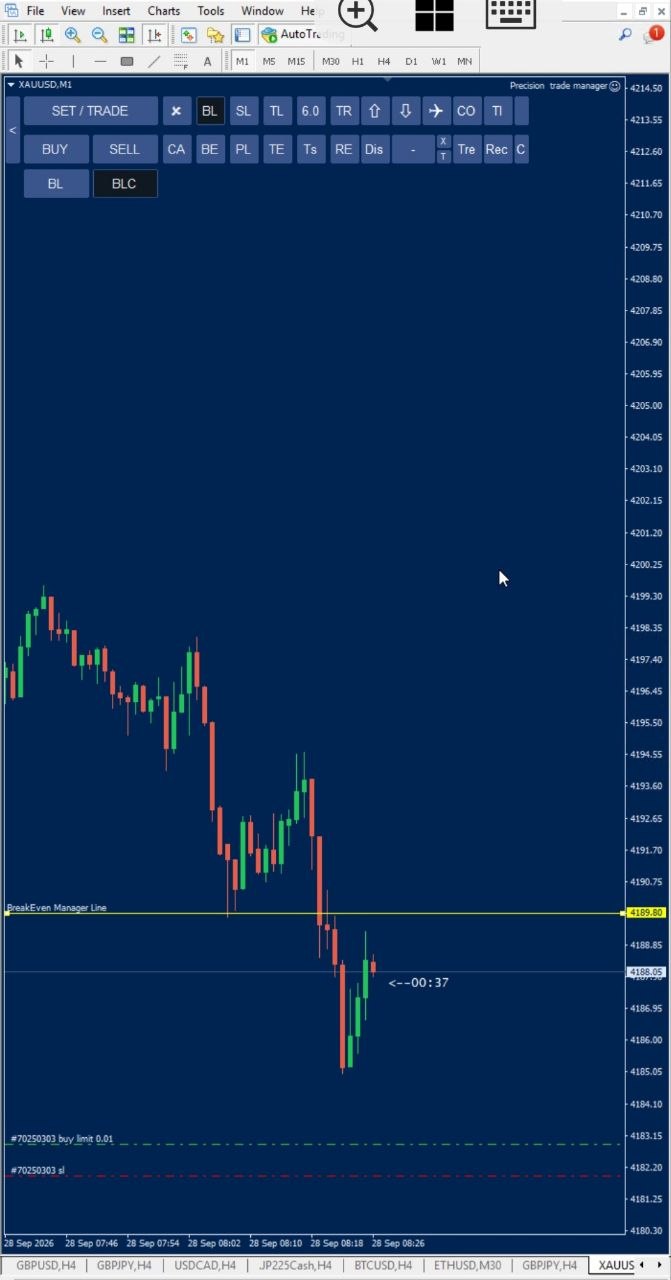
Latest Update: 6+1 New Features for Trade Manager MT5 MT4
Six new management controls plus one workflow improvement for faster, more controlled chart-based trade management on MT4 and MT5.
1. CP – Close Profitable Positions
A sub-panel under CA. One click closes every position that is in profit and leaves losing positions open, so you can bank gains without closing what is still underwater.
2. CL – Close Losing Positions
A sub-panel under CA. One click closes every position that is in loss and leaves profitable positions running.
3. CT – Custom Trendline Profit Protection
Draws a red, slope-adjustable trendline on the chart. Drag it to your chosen level and confirm with the OK button. When price touches the line, the buy or sell positions are closed automatically. It works as a fixed profit-protection barrier.
4. BLC – Break-Even Pending Order Cleaner
Found under the BL menu. Place the line, and if the market price reaches it, all active pending orders are cancelled. Old pending orders do not stay open after the situation has changed.
5. TI – Instant Loss Target Break-Even
Found in the TE sub-panel. One click moves the take-profit of losing positions to break-even, based on the accumulated commission and swap costs.
6. TL – Trendline Target Auto-Transfer
A trendline to which all take-profit targets are transferred automatically when price closes against the trend direction. It is designed for recovering a delayed entry with a minimal loss.
+1. Reset Click – Step-by-Step Undo
The reset button now undoes chart-management actions one step at a time, so an accidental reset does not force you to redraw every line.
Trade Manager MT5 MT4 Feature Screenshots
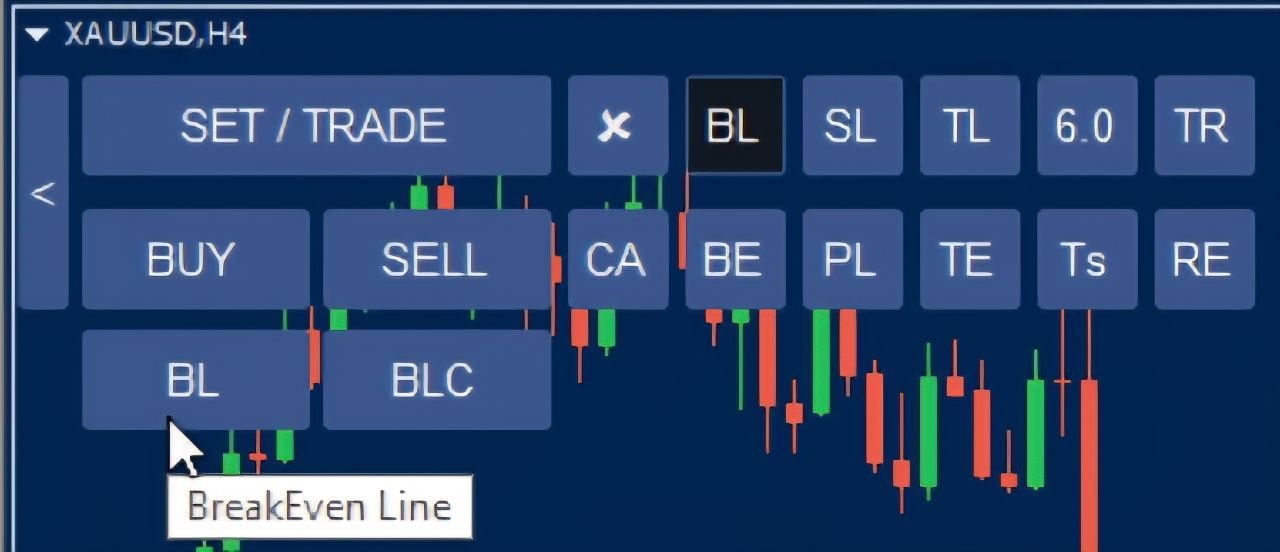
BL – breakeven line
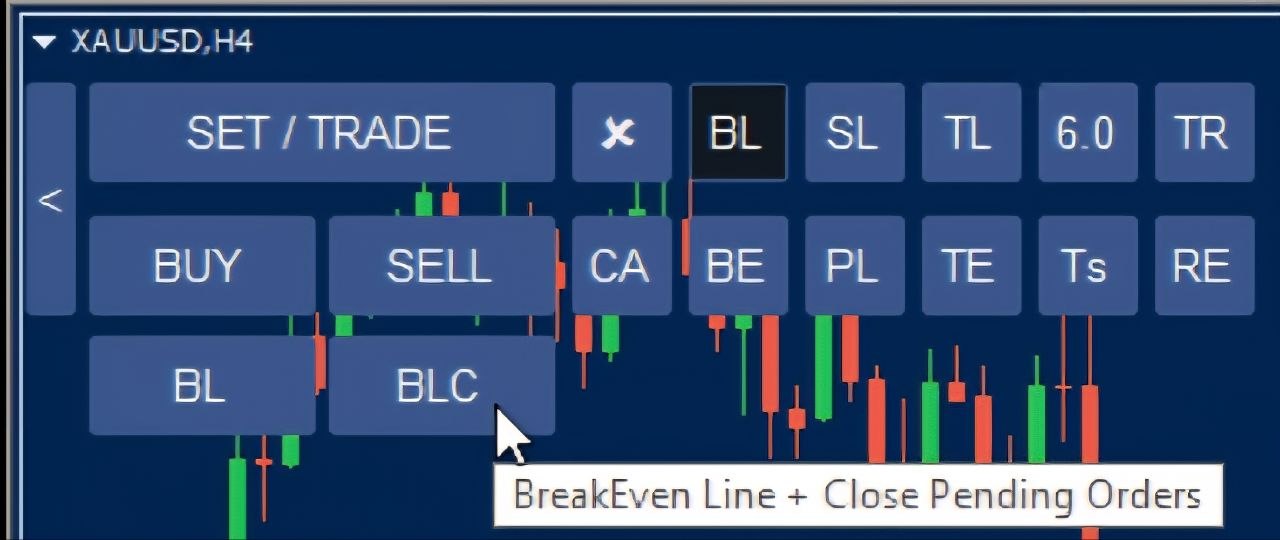
BLC – pending order cleaner
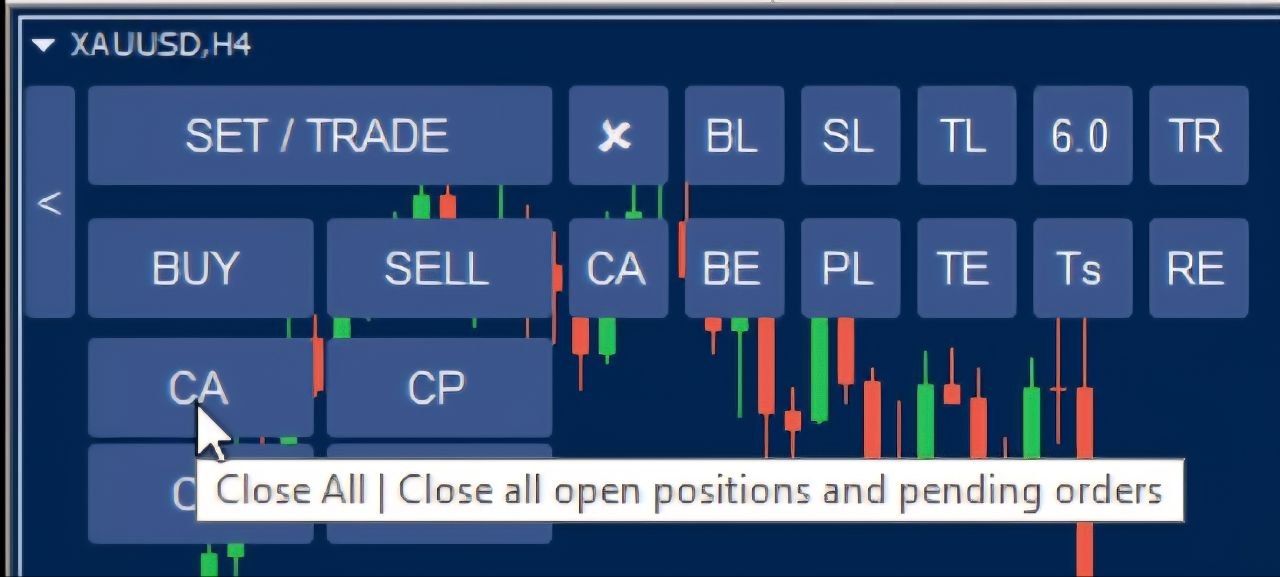
CA – close all
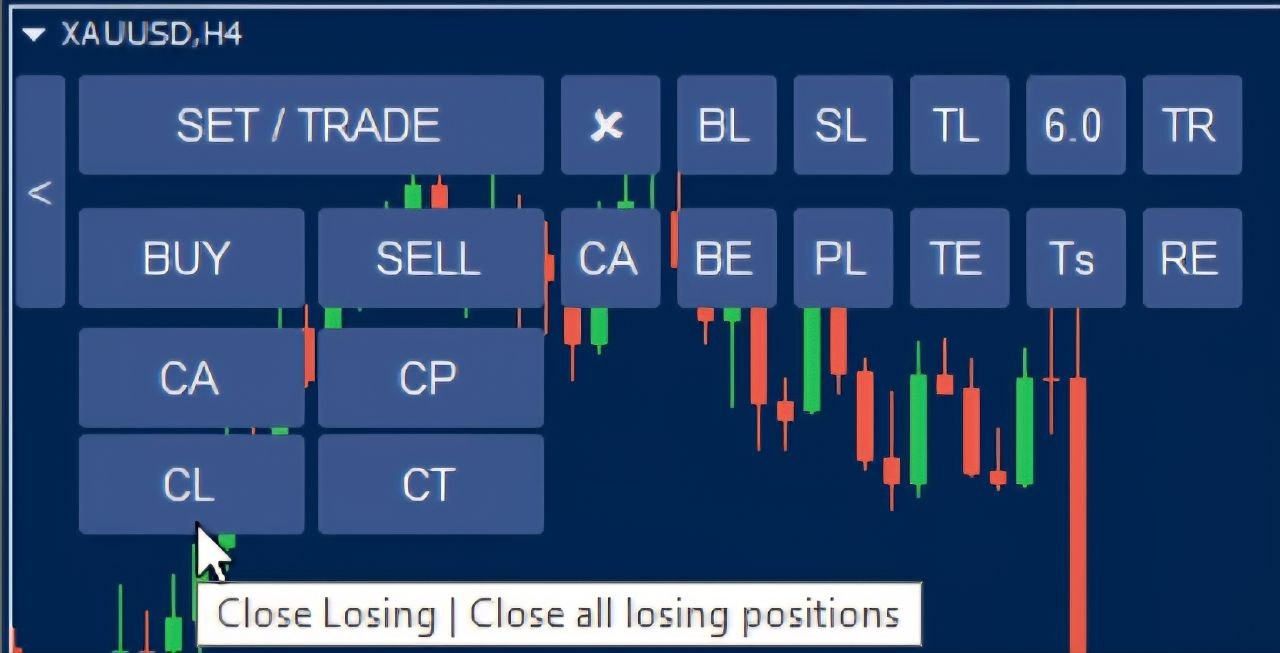
CL – close losing positions
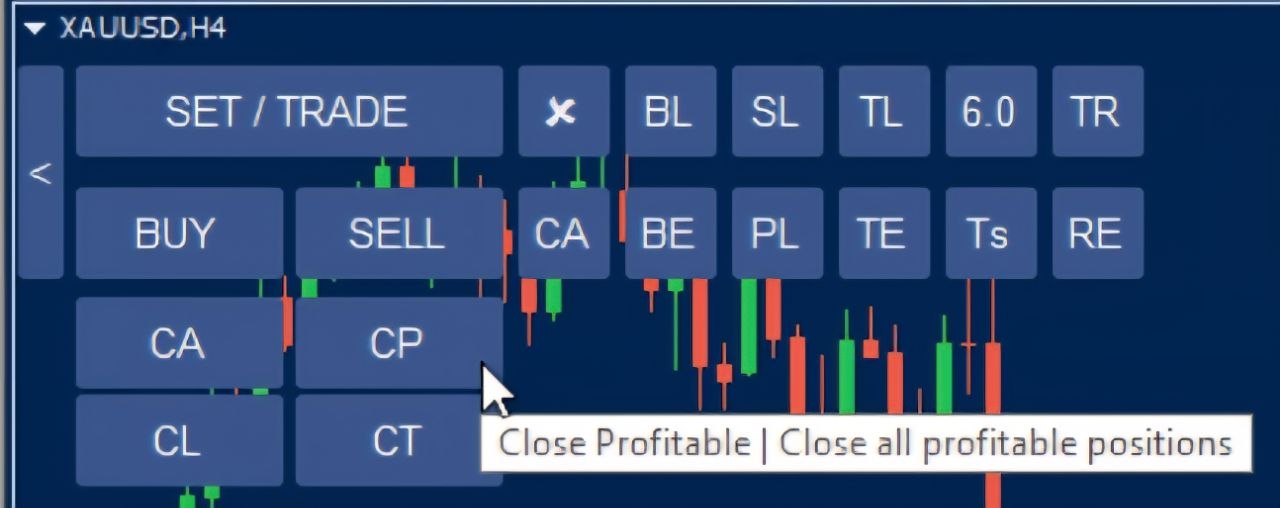
CP – close profitable positions
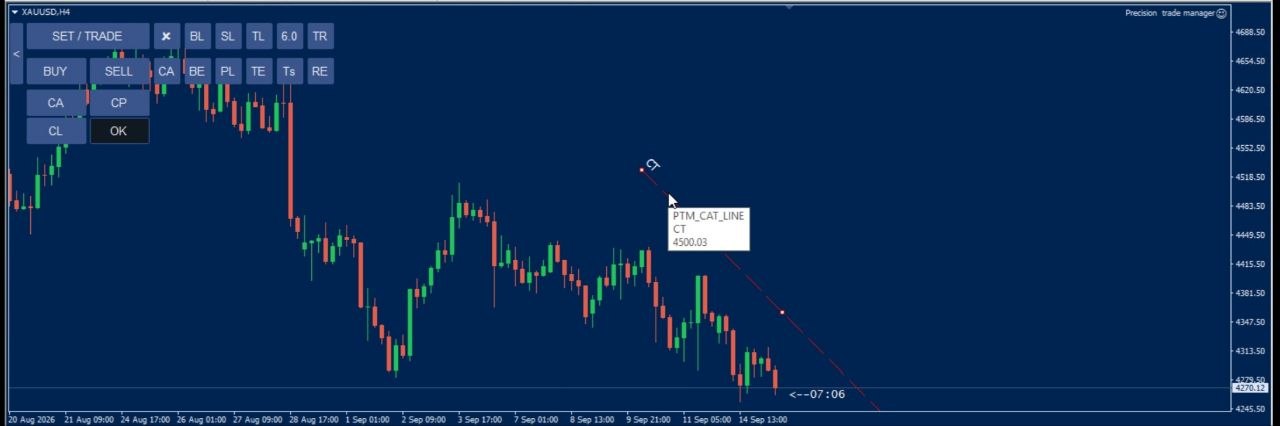
CT – custom trendline (1)
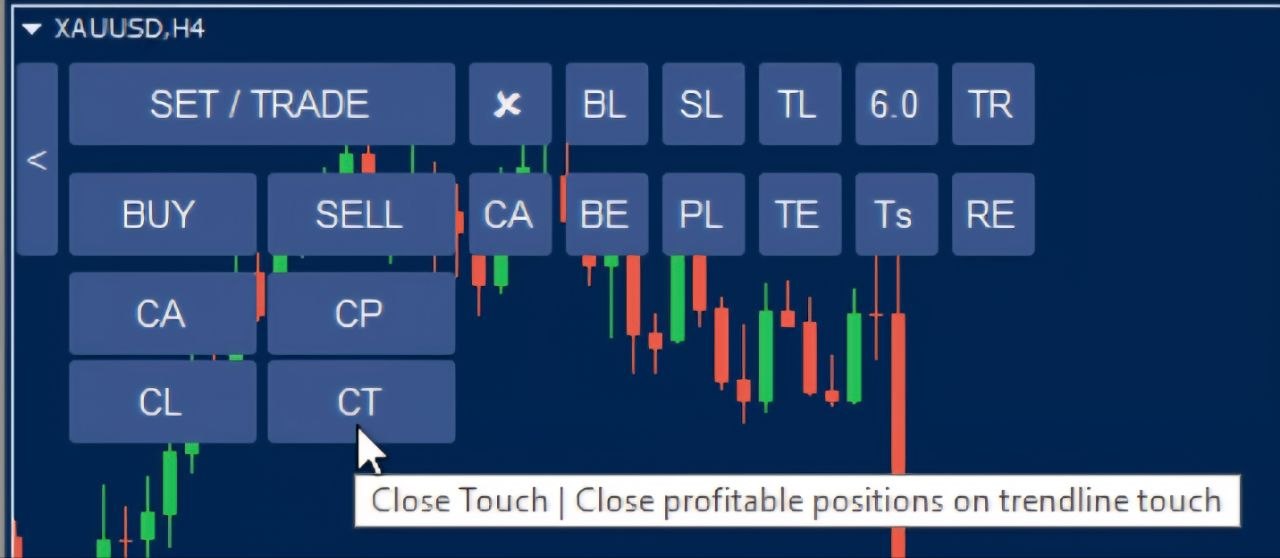
CT – custom trendline (2)
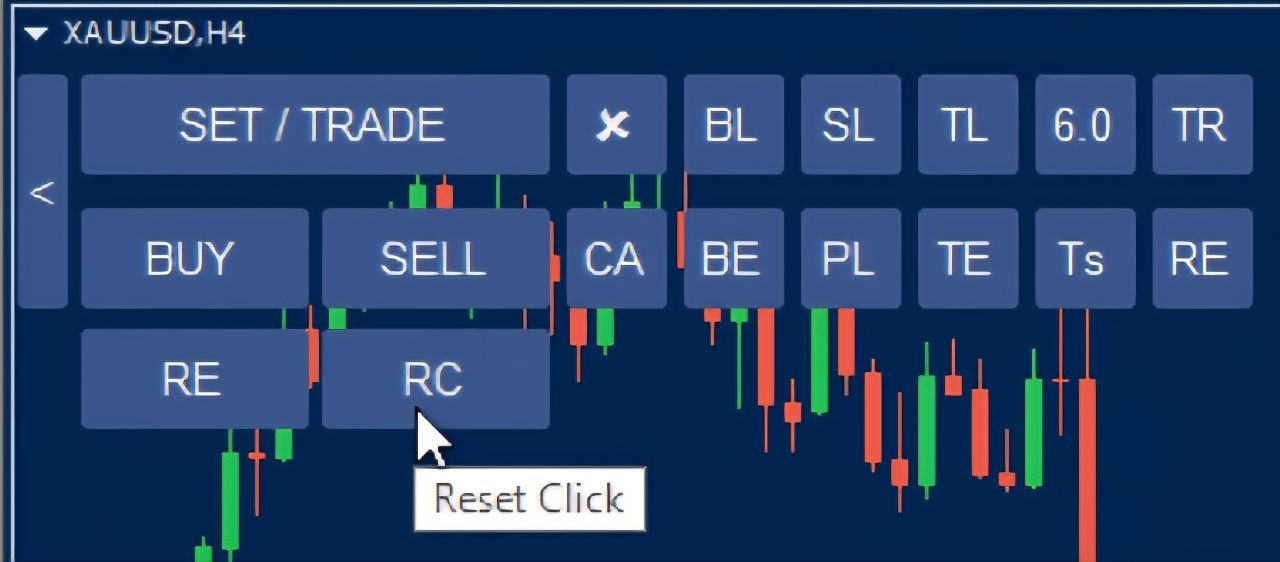
Reset Click
Reset Click – demonstration
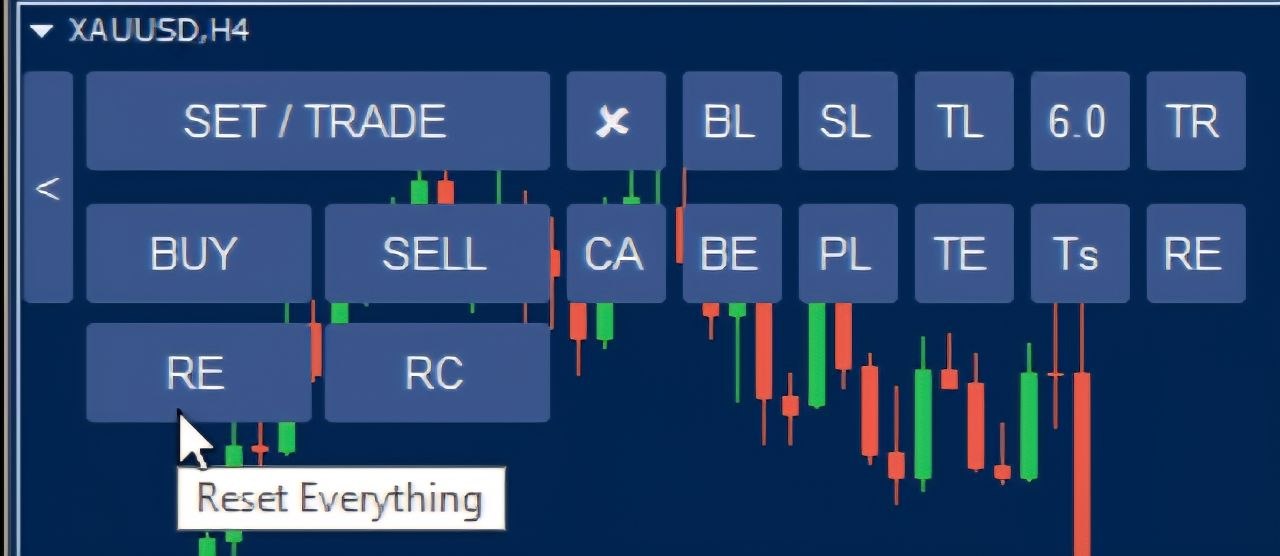
RE – reset panel
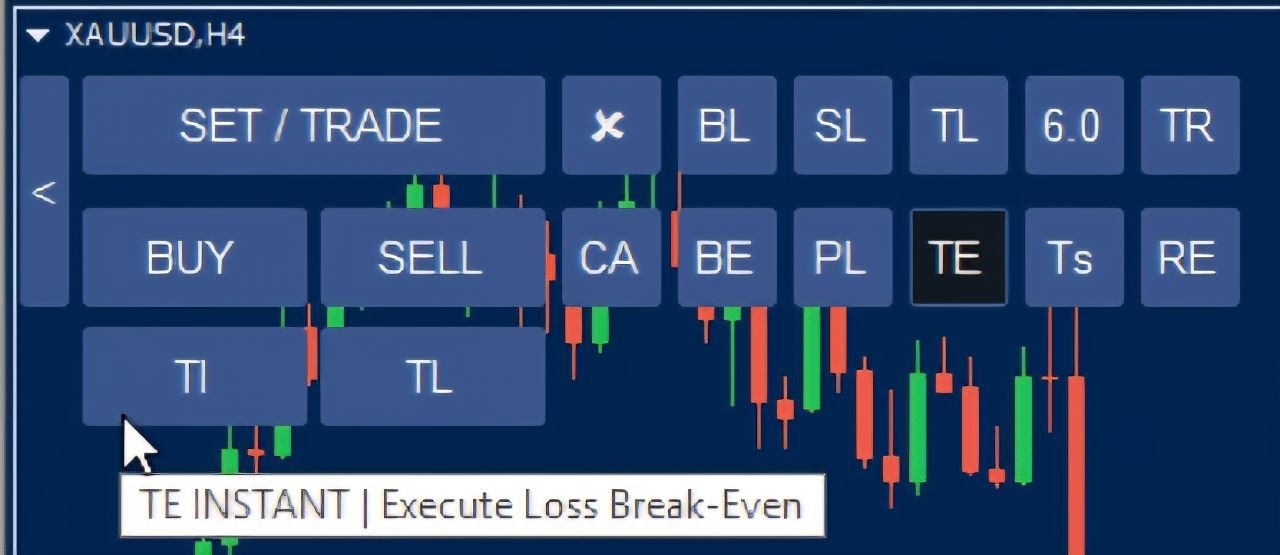
TI – instant loss target break-even
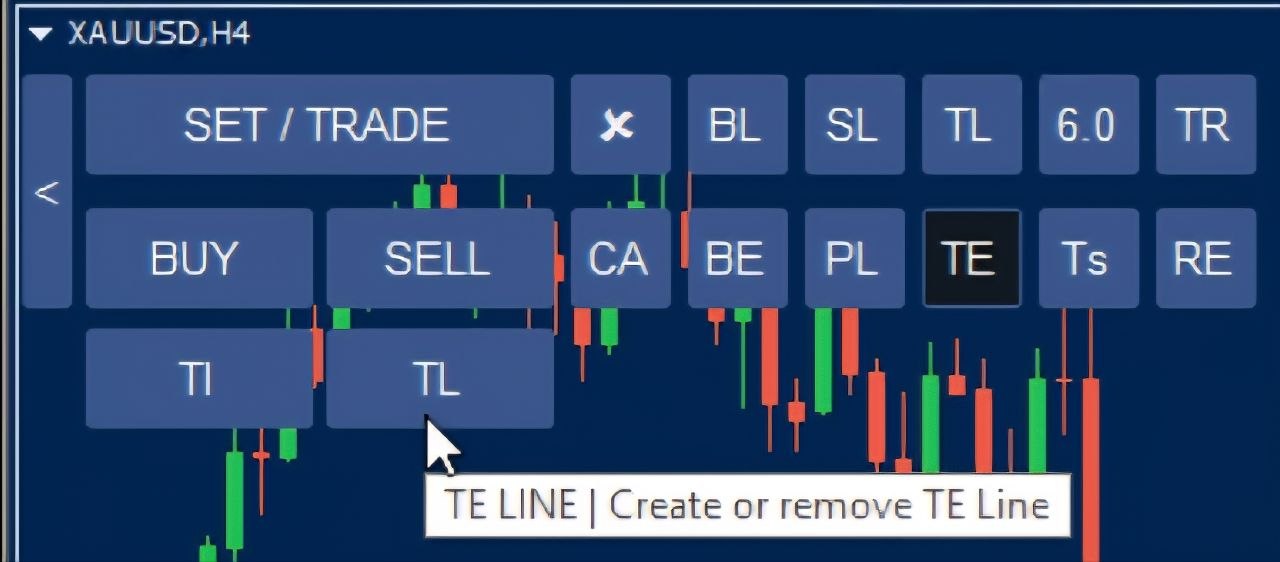
TL – trendline target transfer
Trade Manager MT5 MT4 Ultimate Edition – 6-in-1 Indicator Suite Ultimate
The Ultimate edition adds six chart indicators to the Trade Manager EA. They use the EA’s license, so no separate indicator license is needed. Attach the EA to the chart, activate the license, then add the indicators to the same chart.
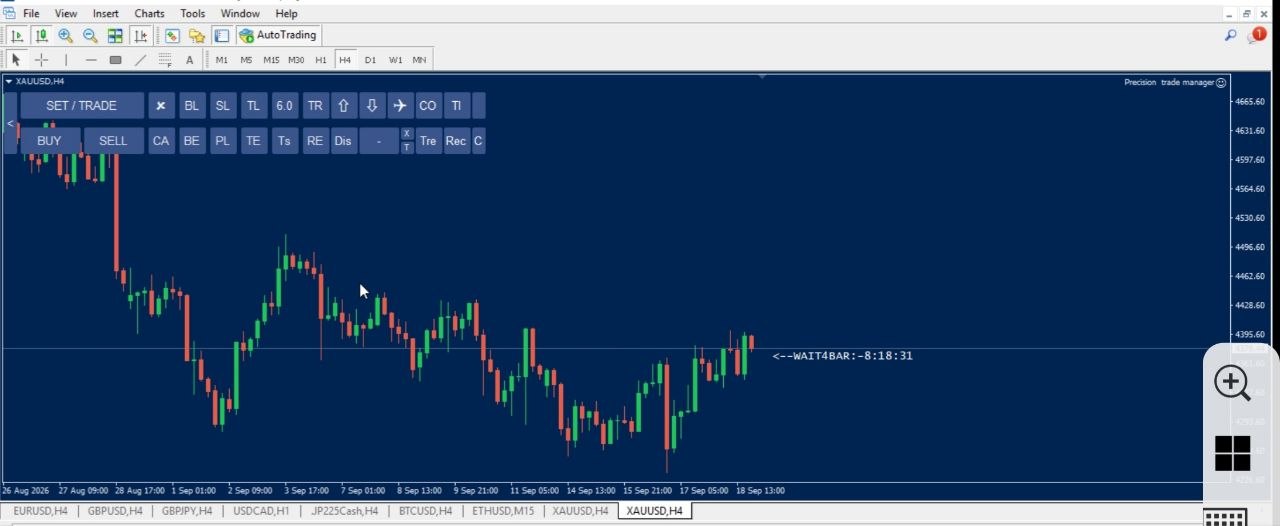

1. Smart Notify
Sends a push notification to your mobile when price touches a line. It works in three modes: a trendline, a horizontal line, and a vertical time line that sends the notification when price meets it.
- Repeat alerts: press the CO button to keep sending the notification after the touch. Set the interval (every minute, or every N minutes) in the inputs.
- Mobile push notifications must be set up in MetaTrader (Tools > Options > Notifications, with your MetaQuotes ID).
2. Checklist
Type your own checklist items, tick them off, and open the checklist panel on the chart before you enter a trade.
3. Clean
Clears all objects from the chart with one click. It keeps the Smart Notify lines, the EA lines, the BETE line, and the texts DB and D. The DB text is the one that removes the BETE line automatically after the Partial Manager performs a partial close, and D activates Dark Cloud Cover, so Clean keeps both.
4. Rectangle Snap
Snaps a rectangle to a candle’s high and low. It also snaps Smart Notify lines and the EA breakeven line.
- Click on a candle to place the line at its close or open.
- Click outside the candle to move the line to its high or low.
- The breakeven line can be set to 1:2: when you click the candle’s high or low, the line moves to twice that distance.
5. Trend Snap
Draws trendlines precisely. If you click a candle on the weekly chart, the line point is placed at that candle’s exact highest or lowest price as found on the 1-minute chart.
6. Distancer
Measures your reward ratio. Click below the candle, then above the candle, then at a farther point. Distancer divides the far distance by the candle’s high-low range and shows your profit ratio as 1:N.
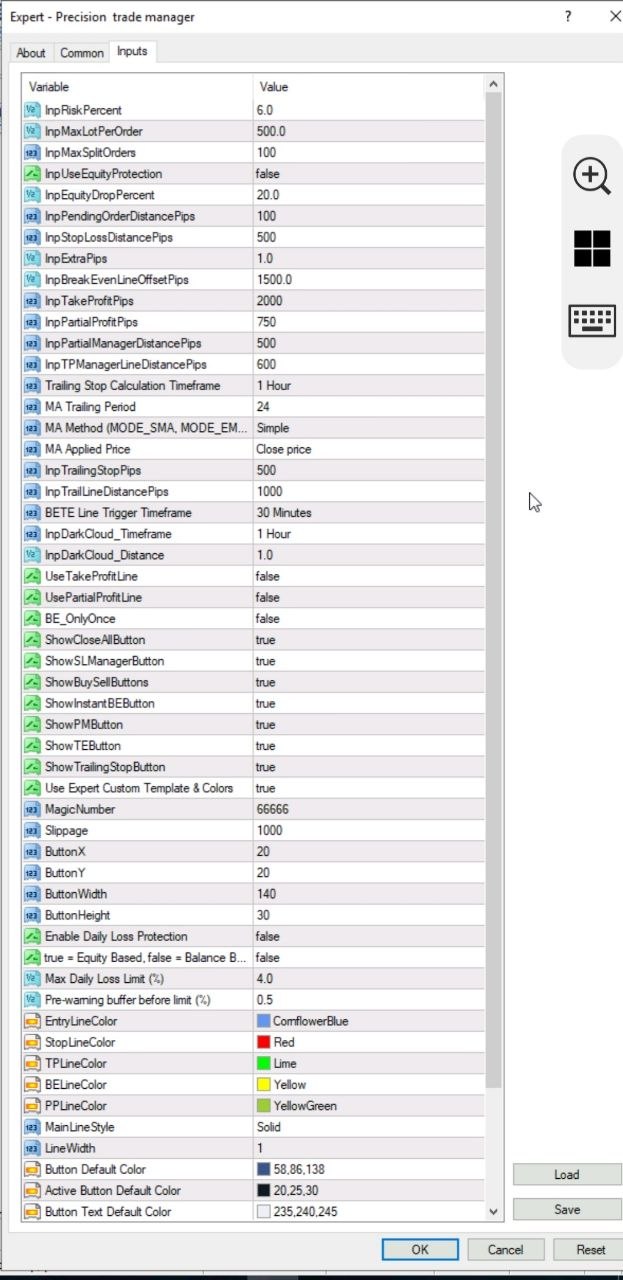
Trade Manager MT5 MT4 Self-Template & UI Styling Auto Chart Layout
When you attach the EA, it applies its own clean chart template and panel layout. This is visual only and does not affect orders. Turn it off in the inputs if you want to keep your own template.
How It Works
- Attach the EA to an MT4 or MT5 chart.
- The built-in template and panel position are applied automatically.
- Disable Use Expert Custom Template & Colors to keep your own layout.
| Input Parameter | Description |
|---|---|
| Use Expert Custom Template & Colors | Turns the built-in chart styling on or off (Default: true). |
| ButtonX / ButtonY | Panel position on screen (Default: 20 / 20). |
| ButtonWidth / ButtonHeight | Size of the panel buttons (Default: 140 / 30). |
| Entry / Stop / TP / BE / PP Line Colors | Colors of the management lines (Default: CornflowerBlue, Red, Lime, Yellow, YellowGreen). |
| MainLineStyle / LineWidth | Style and thickness of the management lines (Default: Solid / 1). |
Trade Manager MT5 MT4 License Management Self-Service
You can install the EA on as many devices as you like. A license is linked to one trading account number at a time, and you change that account yourself from your dashboard.
How It Works
- Log in and open My Account → My Licenses.
- Enter the account number you want to use.
- Click Update. The license is active on the new account.
Trade Manager MT5 MT4 FAQ & Troubleshooting Support
Most problems come from permissions, WebRequest settings, broker conditions or EA inputs. Check these first.
Troubleshooting Guide
- Why is the EA not trading? Check AutoTrading (green), Allow Live Trading, that the EA is attached to the chart, and your symbol’s trading conditions.
- Why is WebRequest failing? Check that WebRequest is enabled and
https://precisiontrademanager.comis added exactly as written. - Why can’t I switch my license? Open My Account → My Licenses and check that 12 hours have passed since your last account change.
- Why is the lot size different from what I expected? Check equity or balance, risk %, stop-loss distance, and the symbol’s minimum volume, maximum volume and volume step.
- How does Break Even From Behind work? TB places a Yellow-Green dotted line behind the current price. For Buy positions the TB line is below price and triggers when price reverses downward to it. For Sell positions the TB line is above price and triggers when price reverses upward to it. If the position is in profit, TB uses Break-Even with Commission and Swap included. If the position is in loss, TB places Take Profit exactly at the original entry price without adding Commission and Swap.
- Why did BETE or Dark Cloud not trigger? The BETE line must be named exactly BETE, and the Dark Cloud text must be exactly D.
- Why has BETE not triggered even though price crossed the line? BETE checks only closed candles on the selected timeframe. Wait for the candle to close on or beyond the line. Candles that closed before the line was created are ignored.
- Why was my BETE line removed after a partial close? If a text object exactly DB is on the chart when the Partial Manager performs a partial close, the BETE line is deleted automatically. Remove the DB text if you want to keep the line.
- Why does Dark Cloud alert more than once? The D object is not deleted automatically. Delete it after it fires.
- Why did Equity Protection not close my other symbols? It closes only the losing trades on the symbol where the EA is running.
- Why did a pending order not execute? Check the order price, your broker’s minimum distance, market status, trading session, symbol permissions and free margin.
- Why can MT4 and MT5 behave differently? The two platforms use different trading architectures and order models.
- Can I test on a demo account freely? Yes! You can download the free demo version instantly without any email or form requirements, with full support across all symbols.
Trade Manager MT5 MT4 Official Resources Resources
Official Documentation
- MetaTrader 4 Official Help – MT4 terminal, settings, charts and automated trading.
- MetaTrader 5 Official Help – MT5 trading, charts, settings and algorithmic trading.
- MQL4 WebRequest Reference – HTTP requests and allowed URLs in MQL4.
- MQL5 WebRequest Reference – WebRequest in MQL5.
Trade Manager MT5 MT4 Risk Disclaimer Important Notice
Precision Trade Manager is a trade-management and automation tool that assists with risk calculation, chart-based management and order execution. It does not guarantee profits or eliminate losses. Financial markets involve substantial risk. You are responsible for your account settings, risk parameters, position sizing, broker conditions, execution quality, slippage and trading decisions. Always test new configurations using our free demo download on a demo account before using real funds.
Complete Trade Manager MT5 MT4 Workflow Summary
Trade Manager MT5 MT4 brings entry, position sizing, order splitting, pending orders, SL/TP and partial-profit control, breakeven, Break Even From Behind, trailing stop, loss breakeven, trendline protection, equity protection, daily loss protection and emergency controls into one chart-based workflow.
The 6+1 update adds CP, CL, CT, BLC, TI, TL and Reset Click, and the Ultimate edition adds Smart Notify, Checklist, Clean, Rectangle Snap, Trend Snap and Distancer.