
Trailing stop is one of the most valuable tools for locking in profit as a trade moves in your favor — but managing it across many open orders, especially on symbols with very different pip distances, quickly becomes complicated. That’s why Trade Manager MT5 MT4 gives you three different ways to trail: by fixed pip distance, by swing structure, or by moving average — so you can pick the method that fits the symbol and strategy you’re trading.
Three Trailing Modes, One Orange Line
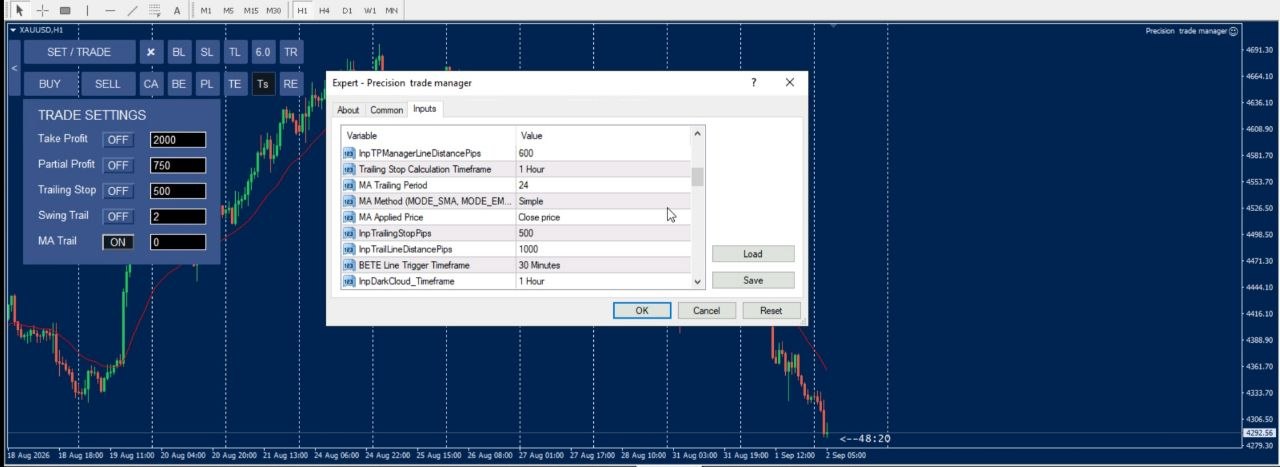
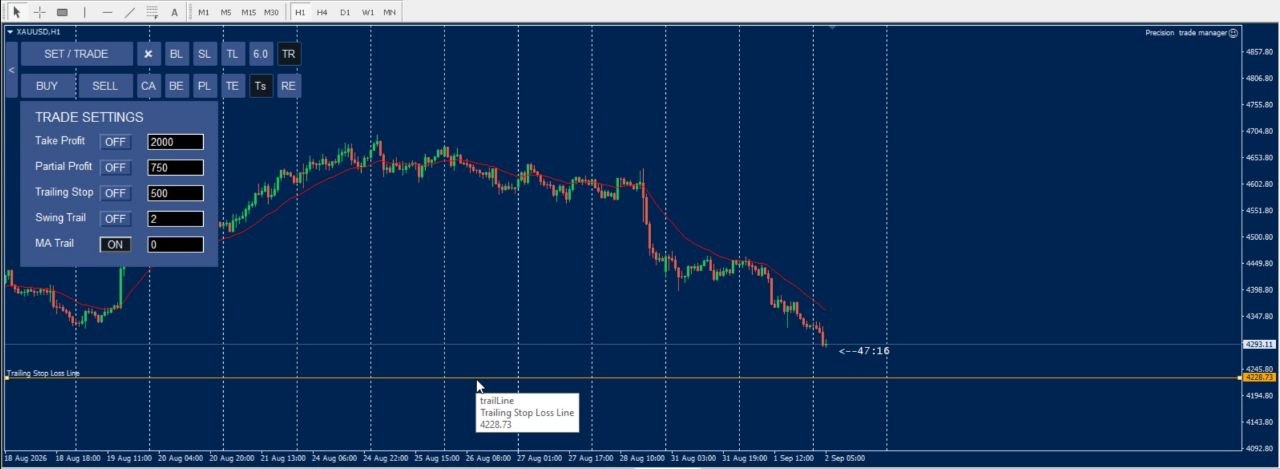
All three modes work the same way on the chart: configure the mode in the Trade Settings panel, click the outer “TR” button, and an orange trailing stop line appears based on your configuration. Once price touches the line, trailing starts automatically across every open order, and the line disappears on its own. To stop trailing at any time, click “TR” again to deselect it.
1. Trailing Stop (Pip-Based)
Open the Trade Settings panel (“TS”) and set the pip distance you want in the Trailing Stop field, then switch it on. Click “TR” on the chart, and the orange line appears at that exact pip distance from price. This is the classic mode — because pip distances vary so much between symbols, we recommend setting the ideal distance per symbol and saving it as your own template so it’s ready instantly.
2. Swing Trail
Instead of a fixed pip distance, Swing Trail follows market structure. In the panel, choose which swing you want to trail from — the 1st, 2nd, or any further swing back from current price — and set the timeframe for that swing in the inputs. Switch the Swing Trail toggle on, click “TR,” and the orange line is drawn at that swing level. Once price touches it, trailing continues based on swing structure rather than a fixed distance.
3. MA Trail
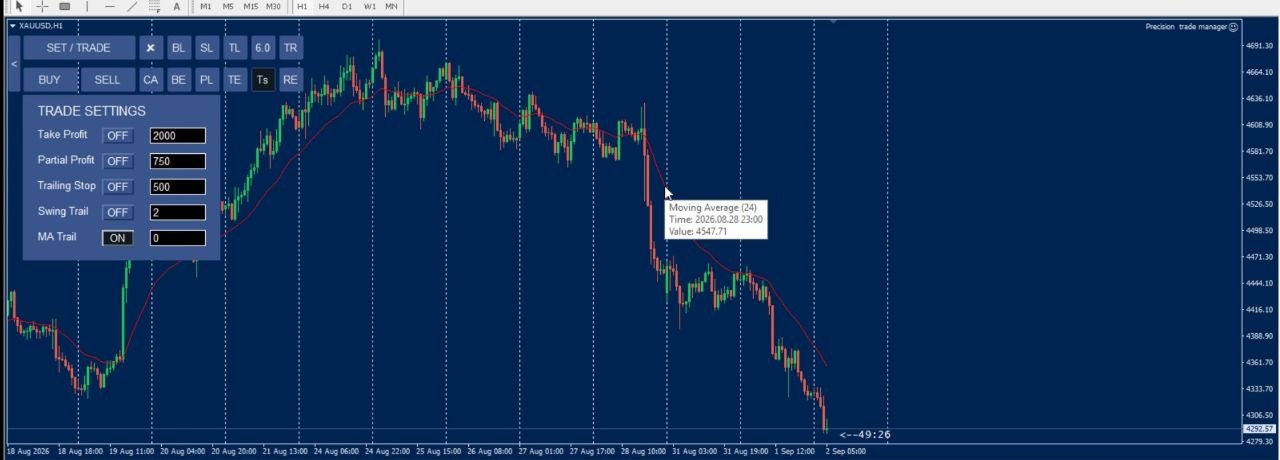
MA Trail follows a moving average instead of a fixed distance or a swing point. First open the EA’s Inputs tab and set the Trailing Stop Calculation Timeframe, MA Trailing Period, MA Method (SMA, EMA, etc.), and MA Applied Price (e.g. Close price) so the moving average is drawn on your chart correctly. Then, in the panel field next to MA Trail, specify which candle back you want to use — the stop-loss trail position will follow the point where that candle’s time intersects the moving average line. Click “TR” to draw the orange line, and trailing begins once price touches it, continuously following the moving average from that point on.
What Does This EA Actually Do?
- Three trailing modes to choose from: Trailing Stop (pip distance), Swing Trail (swing structure), and MA Trail (moving average)
- “TS” button opens the Trade Settings panel, where each trailing mode has its own toggle and configuration field
- “TR” button (on the chart) draws an orange trailing stop line based on whichever mode is currently active
- Once price reaches the line, trailing starts automatically across every open order, and the line disappears
- All trailing settings are fully customizable per symbol and can be saved as a template for instant reuse
- Trailing can be stopped at any time by clicking “TR” again to deselect it
- Switching between timeframes has no effect on an active trailing process — it continues uninterrupted
How It Works (Step-by-Step Guide)
- Click “TS” to open the Trade Settings panel
- Choose your trailing mode:
- Trailing Stop: enter the pip distance (InpTrailingStopPips) in the panel field and switch the toggle on
- Swing Trail: set the Trailing Stop Calculation Timeframe in the EA’s Inputs tab, choose which swing to follow in the panel field, and switch the toggle on
- MA Trail: in the EA’s Inputs tab, set the Trailing Stop Calculation Timeframe, MA Trailing Period, MA Method, and MA Applied Price, then enter the candle offset for the MA intersection in the panel field and switch the toggle on
- Save these settings as a template for that symbol so you can reuse them instantly next time
- Click “TR” on the chart — the orange trailing stop line appears based on your configured mode
- Once price reaches the line, trailing begins automatically across every open order, and the line disappears
- To stop trailing at any time, click “TR” again to deselect it, or turn off the toggle in the Trade Settings panel
Why This Beats Manual Trailing Stop Management
| Manual Trailing Stop | Trailing Stop EA |
|---|---|
| One fixed method regardless of symbol or market structure | Choose between pip distance, swing structure, or moving average per symbol |
| Must be re-applied to every order individually | Applies across every open order automatically |
| Risk of forgetting to reapply after changing charts or timeframes | Keeps running uninterrupted across any timeframe once active |
Frequently Asked Questions
What’s the difference between the three trailing modes?
Trailing Stop uses a fixed pip distance from price — best when you already know the ideal distance for a symbol. Swing Trail follows recent swing highs or lows on a timeframe you choose — best for structure-based trading. MA Trail follows a moving average, using the intersection of a chosen candle and the MA line as the trail point — best for trend-following strategies.
Can I use more than one trailing mode at the same time?
Only one mode drives the orange trailing line at a time. Switch the toggle for the mode you want active in the Trade Settings panel before clicking “TR.”
What’s the difference between the TR button and the Trade Settings panel?
The “TR” button draws the orange trailing line directly on the chart based on whichever mode is active. The Trade Settings panel (opened with “TS”) is where you configure each mode’s settings and switch it on.
Does changing the timeframe affect an active trailing process?
No. Once trailing has started, switching between timeframes has no effect — the process continues running in the background, regardless of which mode is active.
How do I stop trailing once it’s active?
Click “TR” again to deselect it, or turn off the relevant trailing toggle in the Trade Settings panel.
Does this work with all brokers?
Yes, as long as your broker supports MetaTrader 4 or the official MetaTrader platform.
Let Every Trade Trail Automatically, on Any Symbol
[CTA Button: Download / Buy Now / View Pricing]
Related Tools
Combine Trailing Stop with the SL Manager for manual stop-loss control, or Breakeven to lock in a risk-free position before trailing begins.